You can create a “digital Envelope” which can contain multiple originals and other documents as well. This can be sent/transferred to recipients that can accept, open the Envelope and get access to the documents inside. Documents in the Envelope are separate documents and not necessarily attachments to originals.
An envelope can be created both from a Fullnode (Manager GUI) and the Public Node (Notary GUI).
Click on “CREATE ENVELOPE”.
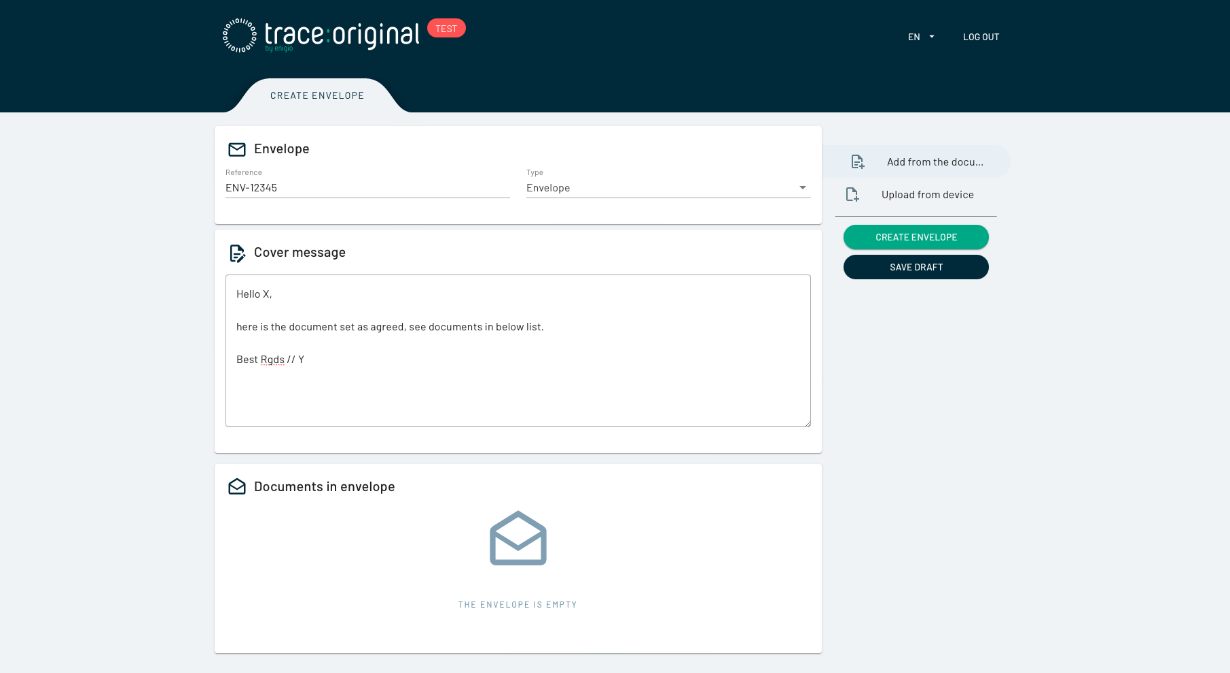
In the Create Envelope view you can set an individual reference number for the Envelope in the Reference field; the type is locked at Envelope.
The Cover Message is the message that can be read by the receiver before the Envelope is opened.
The name of the documents can also be seen by the recipient in the Envelope cover document, but the actual documents cannot be seen or read until the Envelope is opened.
Documents in Envelope can be of three types:
Originals - the possession of these documents are transferred with the Envelope to the recipient
Copies - these are Originals where the document is only sent as a verifiable copy, transfer of possession is not done.
Additional documents - these are not current trace:original documents and of other formats
Add documents
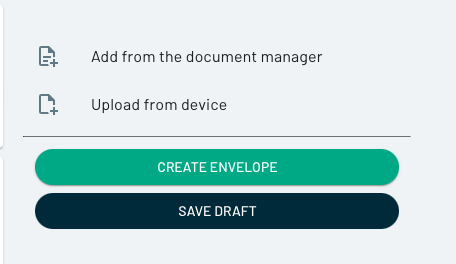
To add originals or copies from the Document Storage of the Full Node you can press the button to the right called "Add from the document manager"
The "Add Document" tab is opened under the "Documents in Envelope" field. From there it is possible to filter out documents from the Originals, Copies, Invalidated, via free text and dates.
To add a document to the Envelope, press the + sign to the right under the Add column.
Documents that are already originals in another Envelope in transit will be marked as "In Envelope" and can only be added as Copy to a new Envelope before it is removed from the other Envelope. Also, any documents that are pending signing or in transit can also only be added as copies until signing is complete. This is to protect the user to accidently transfer away an original that is supposed to be in another Envelope or transfer away a document before it is signed.

In the example above it is possible to see that the user has chosen to add two originals to the Envelope, one that should be transferred, one that is already in another Envelope and thus added without transferring possession. There is also a copy added from filtering with the Copies radio button.
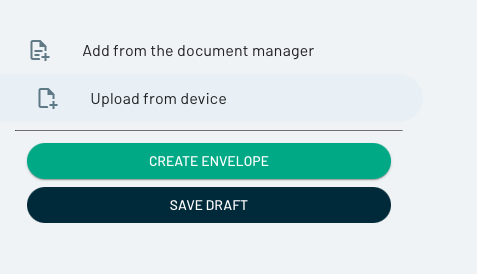
To add Additional documents, select the button "Upload from device".
When a couple of additional files have been added the Documents in Envelope can look like this.

Send an Envelope
If you are ready with all documents that should be sent in the Envelope it is time to Create Envelope by pressing the Create Envelope button.

Check that the preview looks correct and enter the name of the recipient and the email to where the Envelope link should be sent.
Also include a personal message that will be included in the email with the transfer link.
Lastly, choose the text that should be written into the transfer amendment of the originals where possession is changed, add a clear endorsement intent or write To order.
When ready press Create & Send.
After Create & Send you are returned to the Home screen where the Envelope is now listed and "In transit".
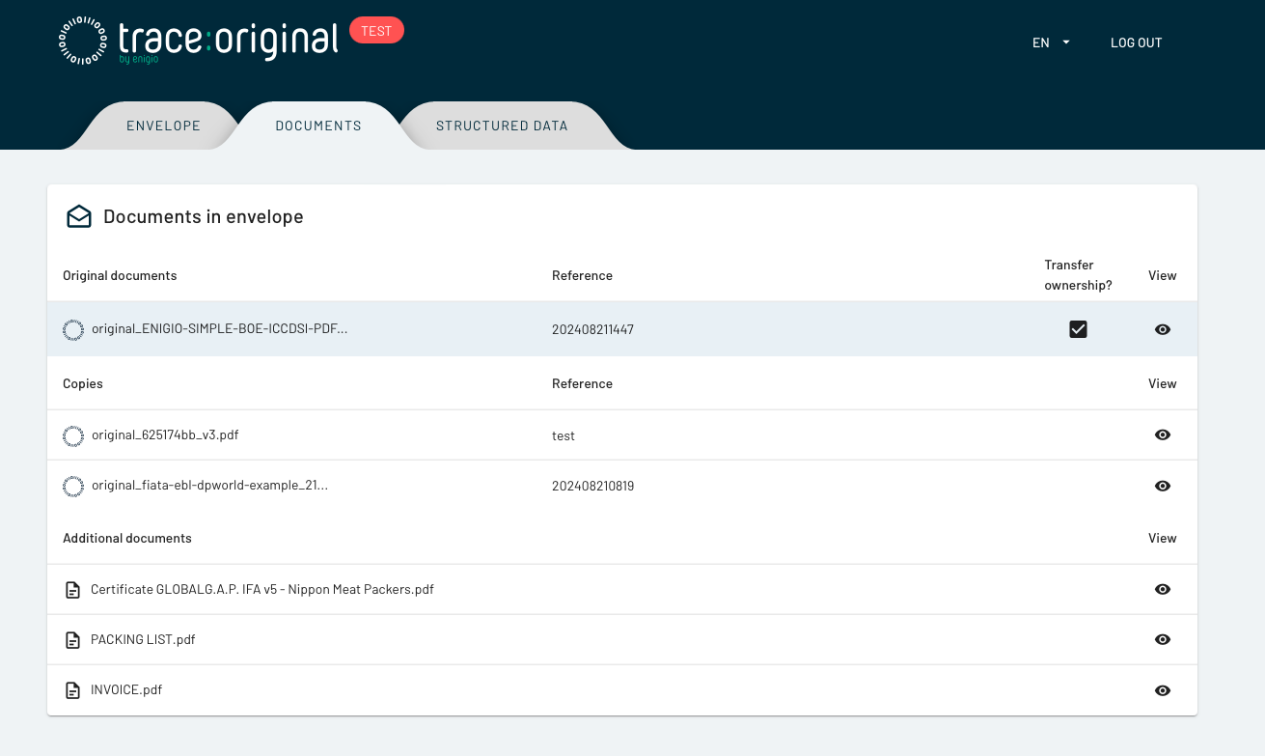
To check that the Envelope is sent to correct recipient or maybe cancel or verify content, click on the row for the Envelope. You will then come to the Envelope manage page where it is possible to verify the recipient, cancel the transfer or check documents on the Documents tab.

The Documents tab will look like this, and it is possible to view the documents by clicking on the "Eye" button.
Receive an Envelope
The recipient will receive an email similar to this (depending on Customer config and sender email).

When clicking the link an authentication with OTP is required as per usual when accepting a transfer via email.


The recipient will get to the acceptance page for opening the Envelope.

When accepting the normal choices of keys will be traversed before finally proceeding with the chosen keys.

When the transfer is finished this view will be seen.

When downloading content, it will be downloaded like a zip file called "envelope_<number>.zip".

The Envelope is now opened and invalidated, the originals inside have been transferred and in the recipients control and they are now copies at the sender side.
The invalidated Envelope original can be used as proof of the recipient opening and receiving the documents inside. The structured data contains the names and SHA256 hashes of all documents included.

Public Notary
The Create Envelope is also available in the Public Notary, the requirement is to be in possession of at least one original.
Creating Envelope in the Notary is like the process in Document Manager with the difference that no Document Storage exists to pick an original from. All documents and possession proofs must be done by presenting the correct private key for the original.
